Web Protection
Security Services > Web Protection controls which websites your users can reach and what they can download. It works in layers that you can use separately or together:
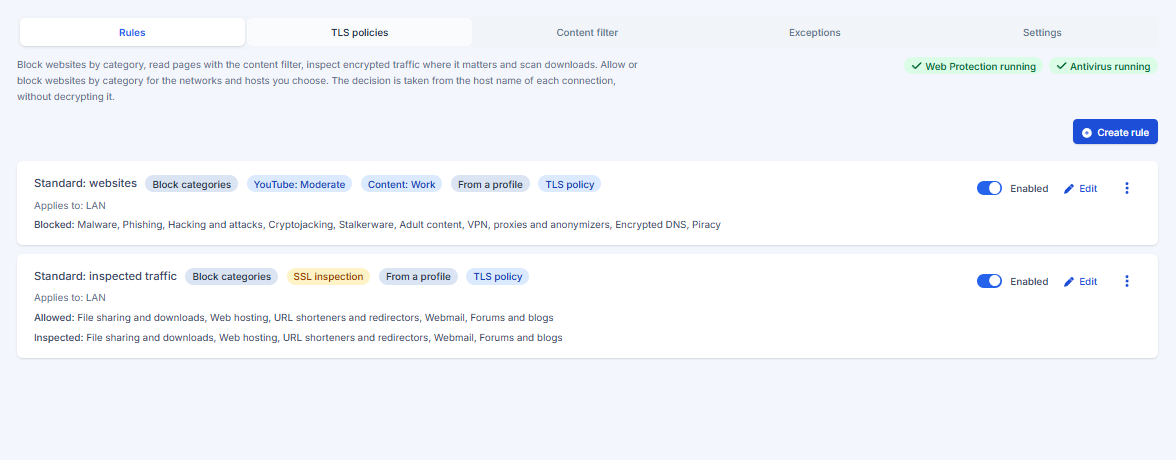
- Website categories (blocking). Websites are sorted into categories such as adult content, gambling, drugs, social networks, streaming, games, malware and phishing. A rule blocks the categories you choose for your networks or devices. No certificate is needed on the devices for the first layer.
- Block page. When a website is blocked, the user sees a page that says why instead of a connection error.
- Content filter. The words of a page are read and scored; a page that scores too high for the profile is blocked.
- Inspection of encrypted traffic. For the categories you choose, the firewall opens the HTTPS connection through its web proxy, checks the certificate of the website, applies the block page and the content filter, and lets the antivirus scan the downloads. The devices must trust the firewall's inspection certificate.
- Antivirus and sandbox. ClamAV and YARA scan the downloaded files; files they cannot decide can be opened in a sandbox (Intelligent Threat Block).
Web Protection is part of the Security Bundle (see Licensing and account). A unit in its trial period can use it.
Defaults on a new unit
The first time a unit starts, secure defaults are applied once, even if you never run the setup wizard: the IPS, the DNS filter, IP and country protection, and the Application Control Standard profile, which creates the Web Protection rules of that profile (including its content filter profile, and the antivirus when the license includes it and the data storage exists). Run the wizard or open Application Control to choose another profile. Nothing is applied again on later boots.
Profiles: the quick way
In the setup wizard (and in Application Control) you can pick a profile. One choice creates the application rules and the website rules:
| Profile | Websites blocked | Inspected and scanned | Family options | Content filter |
|---|---|---|---|---|
| Standard | malware, phishing, hacking, cryptojacking, stalkerware, adult content, VPN and proxy anonymizers, encrypted DNS, piracy | file sharing, hosting, URL shorteners, webmail, forums | off | Work |
| School | Standard plus gambling, drugs, violence, dating, social networks, streaming, games, entertainment | Standard plus AI services | SafeSearch on, YouTube Strict | School |
| Restricted | School plus shopping, sports, remote access, file sharing, advertising, cryptocurrency, URL shorteners | hosting, webmail, forums, AI services | SafeSearch on, YouTube Moderate | Private |
The rules created by a profile are marked From a profile in the rule list. You can edit them; choosing another profile replaces only the rules that a profile created, never your own.
The tabs
| Tab | What it is for |
|---|---|
| Rules | The rules: where they apply, what they block, inspect or enforce |
| TLS policies | Minimum TLS version, ciphers and certificate checks, and what happens when a check fails |
| Content filter | The three content profiles (School, Private, Work): mode, threshold, subjects and scope |
| Exceptions | Sites to always allow or never inspect, and the managed list of sites that are never inspected |
| Settings | The module, SSL inspection and its CA, the category lists, automatic updates, antivirus, sandbox and the engine monitor |
Rules
Open the Rules tab.
- Where it applies: one or more zones (for example LAN) and, if you want, only some devices or networks (objects).
- Block these categories: the categories to block. Use Allow only these categories instead for an allow-list; the infrastructure categories (content delivery networks, software updates) stay open so the network keeps working.
- Inspect: block and inspect are two separate choices. Blocking never needs the proxy: it is decided from the server name and costs almost nothing. Inspecting is what opens a category in the proxy (decrypts it). In the ALLOWED column inspecting lets the antivirus, the content filter and the TLS policy look inside the traffic; in the BLOCKED column it lets the proxy show a block page instead of a connection error. Each column has an Inspect all switch at its top, and each category has its own Inspect button, so you open only what you need and the rest stays outside the proxy.
- Content filter: the content profile of the rule, or none.
- Enforce SafeSearch and YouTube Restricted Mode: see below.
To delete a rule open the three-dots menu of the rule and choose Delete. There is no delete button on the row on purpose, so a rule is not removed by a stray click.
Categories follow the catalog: a new website added to a category is covered without touching the rule. The catalog is downloaded from the Nexwall license server and refreshed automatically; Settings shows its version and lets you update it now. Only the categories your rules use are installed on the firewall.
Websites that are not in any category are allowed. To always allow or never inspect a site, add it as an exception.
The block page
When you inspect blocked categories, a blocked website shows the user a page that says why (in Portuguese, Spanish or English, with the category, the rule and a reference code) instead of a connection error. The web traffic of the rule's clients then goes through the firewall's proxy.
- Websites over HTTP always show the page.
- Websites over HTTPS show it only to devices that trust the firewall's inspection certificate. Without the certificate the browser shows its own security warning, because the page cannot be shown without opening the connection. Categories that are too large for the proxy, and applications, are still blocked as before, without a page.
- If the proxy is down, blocked connections are still reset by the first layer (the traffic classifier). A very small response can arrive before the classifier decides, so do not rely on it as a guarantee.
Content filter
The Content filter reads the words of a page as it passes the proxy and gives it a score from 0 to 100 for six subjects: adult content, violence, drugs, gambling, hate speech and self-harm. A page whose score reaches the threshold of the profile is replaced by the block page (with the subject and the score) or only recorded, depending on the mode.
| Profile | Threshold | Sensitivity | Subjects | Pages read by default |
|---|---|---|---|---|
| School | 45 | high | all six | forums and blogs, news, entertainment, portals, sports, social networks, games |
| Private | 60 | medium | adult, violence, drugs, hate, self-harm | forums and blogs, news, entertainment, portals, sports |
| Work | 85 | low | adult, hate | forums and blogs, news, portals |
In the Content filter tab you can change, for each profile, the mode (block or only record), the threshold (20 to 95), the subjects and the scope (certain categories or all sites). Back to defaults restores the profile. A rule picks one profile.
How the score works, in short: each subject has a list of words and phrases in English, Spanish and Portuguese with weights; the more and heavier the words, the higher the score. A long page counts less, words of study, health or news around the subject lower the score, and for self-harm words of help lower it a lot. Pages with fewer than 25 words are not judged and pages over 2 MB are not read.
Limits, honestly:
- It reads words, not pictures. Images are not covered.
- A list of words can be wrong both ways (a medical page about drugs, a harmless page that mentions a gambling brand). The only record mode and the threshold exist for that: start by recording, review the log, then block.
- Only HTML pages are read. HTTPS pages are read only where the proxy decrypts (the categories of the profile, or all sites when you choose that scope, which costs more CPU and can break applications that refuse a decrypted connection). Social networks send their text as data, not as a page, so use category rules, SafeSearch and YouTube Restricted Mode for them.
- The check fails open: if its service is down, the proxy keeps working and pages are not judged.
Inspecting encrypted traffic
Only the categories you mark Inspect go through the proxy. Each firewall creates its own certificate authority (CA) the first time inspection is needed. Install this certificate on every device whose traffic is inspected, otherwise the browser shows a warning:
- Open Security Services > Web Protection > Settings, section SSL inspection, and download the CA certificate.
- Install it as a trusted root authority on the devices (Windows: certificate manager; macOS: Keychain Access; Linux and Android: the system certificate store or the browser's own store; companies distribute it with their device management).
- Check one device by opening an inspected website: the certificate shown is issued by Nexwall Firewall Inspection CA.
Things worth knowing:
- After you restore a configuration backup on a new or reinstalled firewall, the rules and profiles come back but the firewall creates a new inspection CA: install the new certificate on the devices again. The category lists, the antivirus signatures and the YARA rules are downloaded again after the first license check (a few minutes).
- The private key of the CA stays on the firewall and is not included in backups or images. Rotate the CA from the same section if you suspect it was exposed; the devices must then trust the new certificate.
- Sites that must never be opened (banking, government, health, education) are not in the inspected categories of the profiles. Add other sensitive sites as exceptions.
- If the web proxy stops answering, the firewall removes the redirect by itself and connections go straight to the internet (uninspected), and logs a message. When the proxy answers again the redirect returns.
- Browsers may try QUIC (UDP port 443). For inspected devices the firewall refuses it so the browser uses the inspected TLS connection.
- Applications that pin their certificates (some banking and update clients) fail when inspected: add them as exceptions.
- Inspection uses CPU in proportion to the traffic it opens. Start with the categories you really need.
QUIC (HTTP/3)
QUIC carries web traffic over UDP port 443, where a proxy cannot read it: the block pages, SafeSearch, the antivirus and the content filter would not see it. In the Settings tab the switch Block QUIC (HTTP/3) (on by default) refuses UDP 443 for the clients of the rules that filter the web. The refusal reaches the client at once, so the browser changes to HTTPS over TCP in a few milliseconds and the web protection applies to everything. Turn it off only if a service you need does not work without QUIC.
Antivirus
In Settings, section Antivirus.
- Engines: ClamAV (signatures from the ClamAV mirrors, updated several times a day) and YARA (rules from the Nexwall license server, refreshed weekly). Both scan every file; either one can stop it.
- Storage: the ClamAV signatures need about 300 MB and the engine about 1 GB of memory. The antivirus needs the data storage of the firewall and will not start without it. The first start downloads the signatures (a few minutes); the page shows their date and the state of each engine.
- Maximum scan size: larger files are not scanned. Choose whether they are allowed or blocked.
- When the scanner is not available: choose fail open (downloads continue) or fail closed (downloads are refused). If only one engine is down, the other one still decides and the page shows degraded.
- Detections: the last detections are listed with the client, the file size and the signature or rule that matched.
To test the antivirus safely download the EICAR test file (https://www.eicar.org/download-anti-malware-testfile/) from a device that is covered by an inspecting rule: the download must be replaced by the block page.
Sandbox (Intelligent Threat Block)
Files the antivirus cannot decide are opened in an isolated Windows machine and judged by what they do.
- Use the sandbox turns it on (it needs the license that includes it). Choose the language of the analysis machine.
- Hold risky downloads until the verdict: off by default, the user gets the file at once and an alert follows if it turns out malicious. When on, the download waits for the verdict for up to the longest wait you set (15 to 300 seconds; a normal analysis takes about 90 seconds); if there is no verdict in time, the file is delivered.
- Also stop files judged suspicious: treat suspicious like malicious.
- Limits: 60 files per hour, 500 files and 500 MB per day, 20 MB per file, 2 analyses at the same time (a trial license gets half). Files over the limits are not sent and are delivered normally.
- The page shows the files analysed, the ones waiting, the malicious or suspicious ones and the last message.
SafeSearch and YouTube Restricted Mode
A rule can force the safe modes of the search engines and YouTube for its devices:
- Enforce SafeSearch: Google (all country domains), Bing and DuckDuckGo return only filtered results.
- YouTube Restricted Mode: Strict hides most mature content (for children), Moderate hides less (for teenagers).
How it works: the firewall answers the names of these services with the address the providers publish for their safe modes, only for the devices of the rule. Queries of those devices to any DNS server are redirected to it, so changing the DNS server on the device does not help. DNS over HTTPS and TLS are blocked by the profiles. The options do not need the inspection certificate. The firewall keeps the safe-mode addresses out of the traffic classifier so Application Control does not cut them.
Limits: the options apply to devices, not to user accounts, there are no schedules or time quotas yet, and a child who can install their own VPN or use a mobile network is outside the firewall.
Logs
In the Log Viewer, the Web Protection tab shows all the web traffic of the proxy, allowed or blocked: block pages, files stopped by the antivirus or the sandbox, content filter blocks and requests the proxy refused. A checkbox adds the messages of the Web Protection services. Click a device to search for it. The Traffic and applications tab shows what was used. The firewall keeps the hourly traffic reports for 35 days, and Threat Analytics shows what was stopped.
Troubleshooting
| Symptom | Check |
|---|---|
| A blocked website still opens | The device is not in the rule's zones or objects; the website is in an exception; the category list is not installed yet (Settings shows the catalog state); the site uses a name that is not in any category. |
| A blocked HTTPS website shows a certificate warning | The block page over HTTPS needs the inspection CA on the device. Install it, or accept the warning: the site is blocked either way. |
| Certificate warnings on inspected sites | The inspection CA is not installed on the device, or the device is not the one you think (check its address). |
| A site breaks only when inspected | It pins its certificate: add it as an exception. |
| A harmless page is blocked by the content filter | Change the profile to only record, or raise the threshold; the block page shows the subject and score. |
| The antivirus does not start | The data storage is missing (Storage page), the license does not include Antivirus / Sandbox, or the first signature download has not finished. |
| SafeSearch does not apply | The device is not in the rule's scope, the rule is disabled, or Web Protection is switched off (the banner at the top of the page says so). |